How to record audio from a browser tab on a Mac
Browser extensions that record tab audio are limited to the browser that hosts them, and often re-encode what they capture. Recording at the system level instead gives you the browser at full quality, with the rest of your Mac left out by name — and nothing installed into the browser at all.
Get RedLight
Record one app and nothing else. Free to try on macOS 14.4 or later.
Capturing the browser and only the browser
- Open Sources in RedLight
Sources is where you choose what gets captured. By default it is everything your Mac plays — which includes notification chimes landing in the middle of the take.
- Switch Capture Mode to Include
Then pick your browser from the list of running apps. RedLight now records that process only. Exclude does the opposite when it is easier to name what you don't want: record everything except the chat app and the music player.
- Start the audio, then record
Play the tab, then press Start recording or
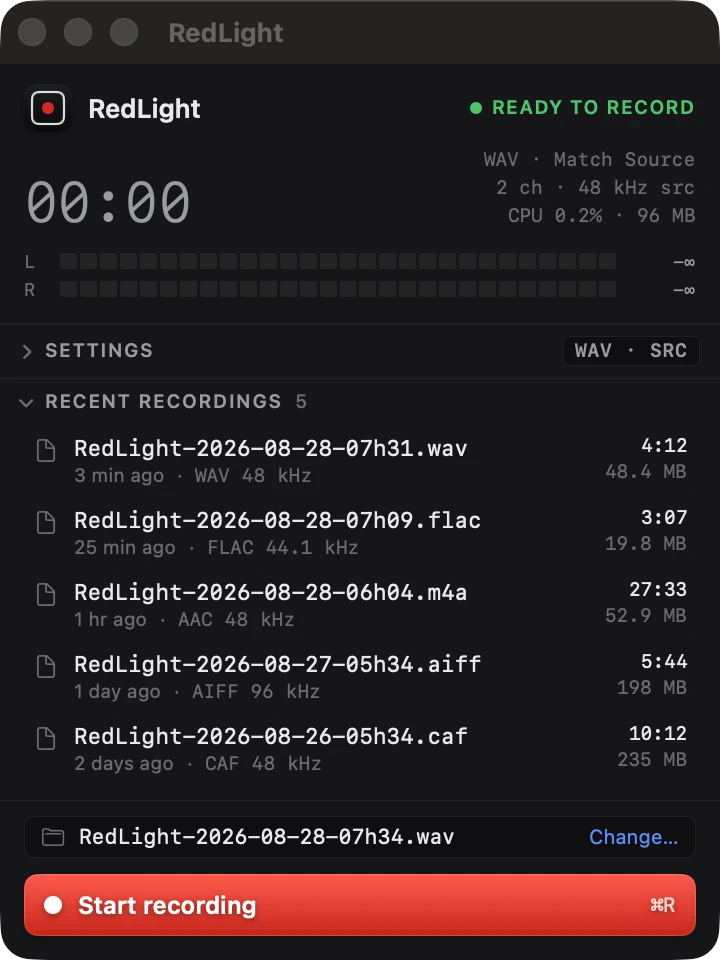
⌘R. The meters confirm sound is arriving. Switching tabs does not interrupt anything — the capture follows the browser, not the tab.
Turning a long session into usable clips
A tab left recording for an hour is one long file with gaps in it. Two settings fix that without any editing afterwards:
- Silence → Split Files — every time the sound stops, the current file is closed; the next sound starts a new one. You end up with one file per burst of audio, timestamped to when it actually started, and takes that never heard anything are discarded.
- Silence → Concatenate — one continuous file with the dead air simply left out.
Both are in Settings, and Do Nothing — record every second exactly as it plays — stays the default.
Quality, and what the file is
The tap delivers the browser's audio as Core Audio has it, so there is no second lossy encode unless you ask for one. Keep the default WAV at the source's own sample rate for editing, FLAC or ALAC to archive at half the size with nothing lost, or AAC when the file is going straight to the web. Whatever you pick, it lands in your chosen folder as an ordinary audio file that opens anywhere.
What you may record
A recorder does not know whose audio it is capturing, so this part is on you: record your own streams, calls you are part of and have consent to record, material you have licensed, and anything else you hold the rights to. Plenty of what plays in a browser tab is licensed for listening and not for copying, and terms of service usually say so explicitly.
Questions
Do I need a browser extension?
No. RedLight captures at the Core Audio level, outside the browser, so nothing is installed into Safari, Chrome, Firefox, Arc or anything else — and it works the same in all of them.
Can I record one tab rather than the whole browser?
Capture is per process, not per tab, and a browser mixes its tabs together before the audio reaches the system. In practice: play only the tab you want recorded, or mute the others.
Will it pick up my notifications?
Not if you set Capture Mode to Include and pick the browser, or use Exclude to name the apps that make noise. Left on All Apps, it records everything your Mac plays — chimes included.
Does the recording stop if I switch tabs or minimise the window?
No. The capture follows the process, so switching tabs, hiding the browser or locking your screen makes no difference to what is being written.
Can I capture the browser and my microphone together?
Yes — turn the microphone on in Sources for commentary over what the tab is playing, mixed into one file or written alongside as its own.
Related guides
Other things people record on a Mac.
Still stuck?
The full support page has the setup walkthrough, every setting explained, and the common fixes. Or email support@kernowlabs.com with your macOS version — we reply within two business days.
You are responsible for recording only audio you have the right to capture, and for obtaining any consent required where you are.